Use tone mapping in Three.js
Updated on . Tested with three.js r186 and R3F 9.
Tone mapping in three.js preserves details and highlights in a brightly lit scene. Without tone mapping a white product under a strong lamp can lose its shading and texture, and a glowing lamp shade can burn out to white instead of keeping its color.

Turn tone mapping on
Set renderer.toneMapping to a curve and leave renderer.toneMappingExposure at 1 to start.
import * as THREE from 'three';

const renderer = new THREE.WebGLRenderer({ antialias: true });
renderer.setPixelRatio(window.devicePixelRatio);
renderer.setSize(window.innerWidth, window.innerHeight);
document.body.appendChild(renderer.domElement);

// Tone mapping is off by default. Turn it on and pick a curve.
renderer.toneMapping = THREE.NeutralToneMapping;
renderer.toneMappingExposure = 1;
Lights and HDRIs can push three.js values past what your screen can actually display. When tone mapping is off, three.js sends those values straight to the screen, and anything brighter than pure white is cut to white. The row of tiles above the products shows it. Each tile is twice as bright as the one before it, from a quarter of white up to sixteen times white.
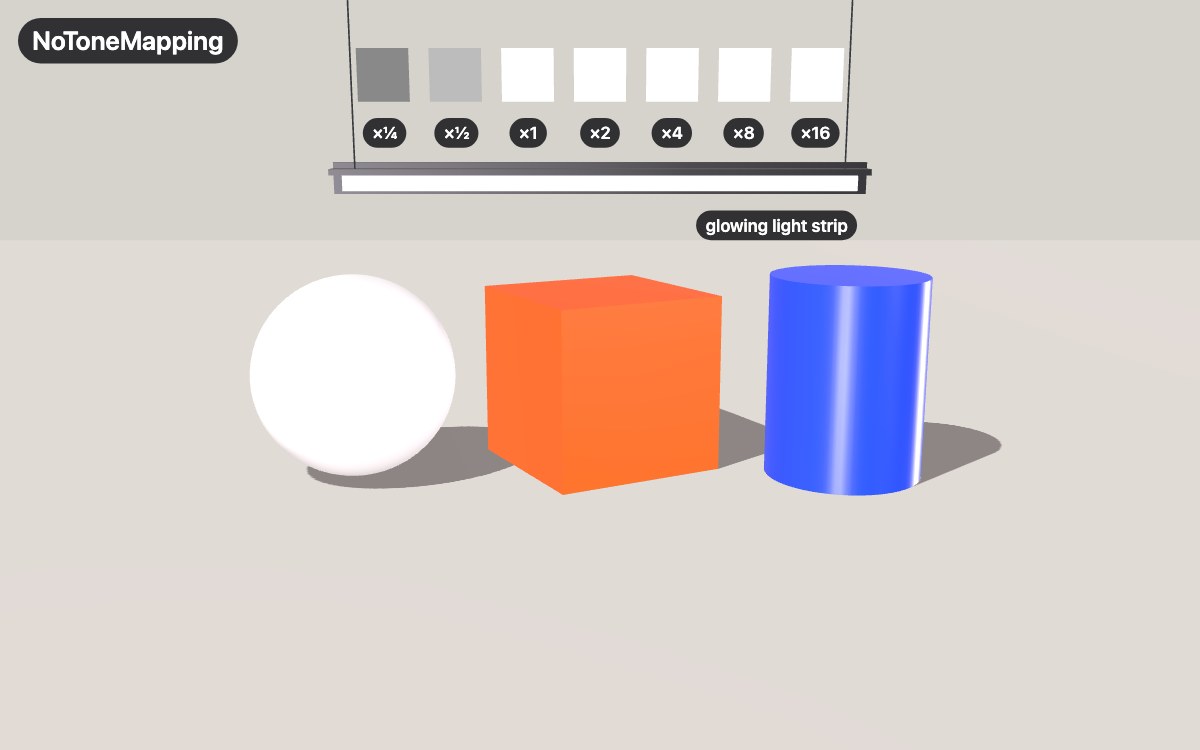
Without tone mapping, every tile from ×1 up is the same white, so the scene has lost everything brighter than white. The ball has no shading left and the strip has lost its color. Now here is the same scene with NeutralToneMapping.
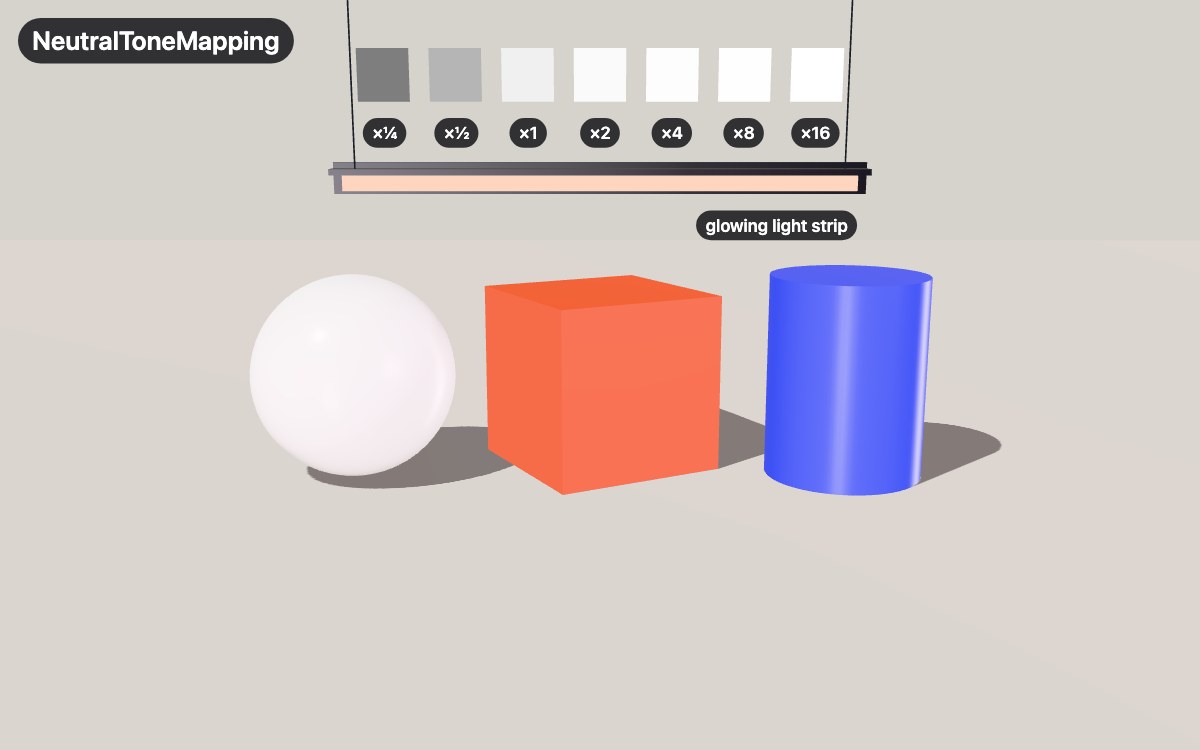
The curve squeezes the bright values into the range the screen can show, so every tile is a step brighter than the last and the ball and strip get their shading and color back.
You can flip renderer.toneMapping anytime, even while your scene is running. three.js catches the change and rebuilds the shaders for the materials it renders on the next frame, so you can skip material.needsUpdate, which older posts still tell you to use.
Choose between Neutral, AgX and ACES
three.js has six built-in curves. They are LinearToneMapping, ReinhardToneMapping,
CineonToneMapping, ACESFilmicToneMapping, AgXToneMapping and
NeutralToneMapping. The last three are the ones worth comparing.
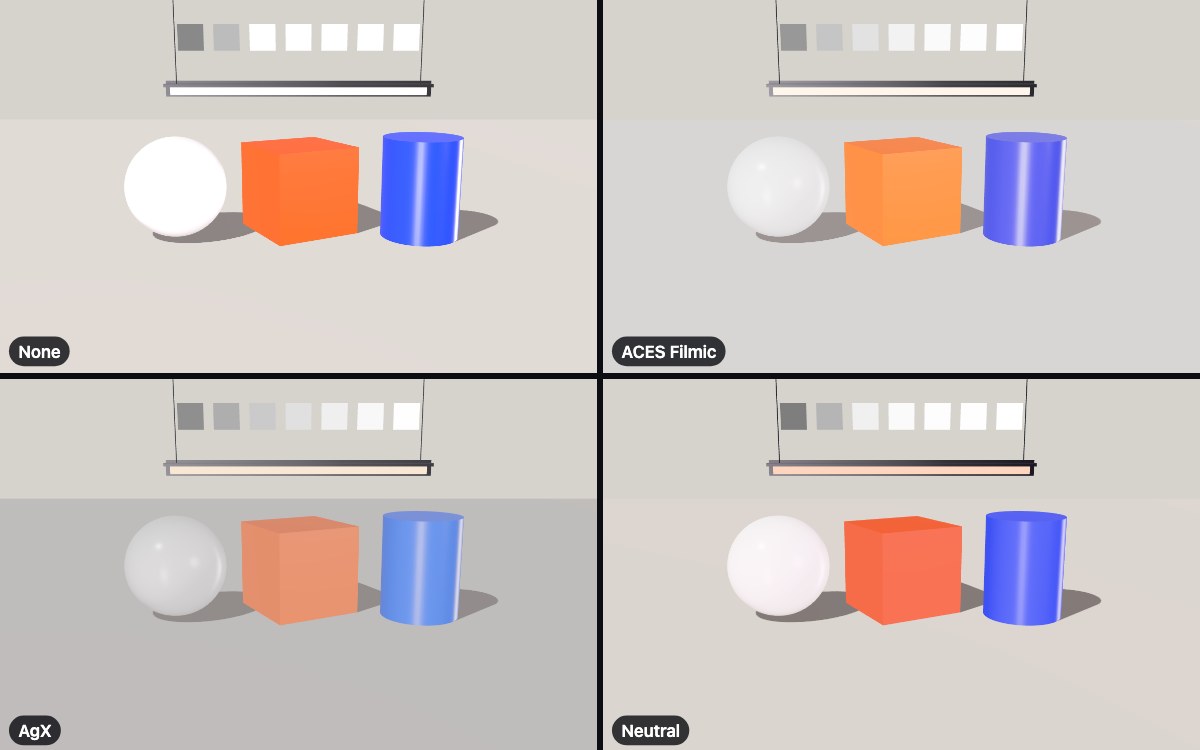
ACES Filmic is the default in React Three Fiber. It adds contrast and keeps highlights soft, but it shifts colors. The orange box gets lighter and more yellow, and the blue cylinder drifts toward violet.
AgX pushes bright colors toward white. It is the most muted of the three. The box ends up salmon and the floor becomes a mid gray.
Neutral is three.js's version of Khronos PBR Neutral, a curve built for online shops, where a 3D product sits next to product photos (the write-up). Colors stay close to what you set, and only the brightest parts get compressed. For a product configurator, where a shopper picks "orange" and expects the orange from the swatch, start here.
Make the scene brighter or darker
Raise renderer.toneMappingExposure above 1 to make the scene brighter, and lower it below 1 to make it darker.
renderer.toneMappingExposure = 1.6;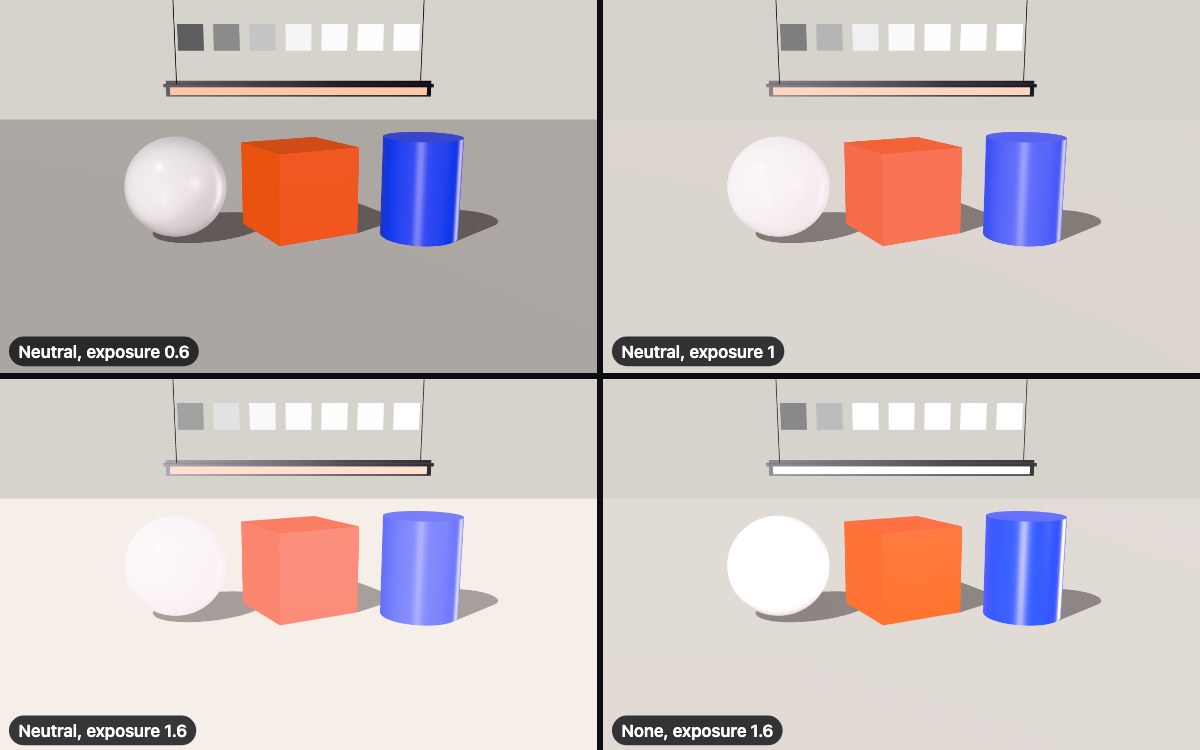
toneMappingExposure multiplies the light before the curve gets applied, just like exposure on a camera. Since it belongs to the curve, it has no effect when you use NoToneMapping. The bottom right picture is at exposure 1.6 with tone mapping off, and it looks exactly like the first picture in this article.
The background does not match the floor
In every picture above, the background stays the same #d6d3cd while the
floor in that same color gets lighter, darker or grayer. A THREE.Color
background is drawn as the exact color, without tone mapping or exposure.
The same goes for a background image in sRGB, such as a JPEG or a PNG. An
HDR background is tone mapped like the rest of the scene.
So a floor and a background set to the same hex meet in a visible line, as
in the AgX picture. Either set the background to the color the floor comes
out as, or tone map the background too by rendering through OutputPass
(see below), which applies the curve to every pixel.
Keep a logo or brand color exact
Set toneMapped = false on the logo's material to get three.js to draw it exactly as it is.
const logo = new THREE.MeshBasicMaterial({ color: '#ff2d95' });
logo.toneMapped = false;
Every material has toneMapped, and it is true by default. Turn it off for anything that needs to show its exact hex value, like a logo, a label, a color swatch in a configurator, or an interface drawn in the scene. Under AgX, the difference is big. On the left is a pink card with tone mapping on, and on the right is the same pink with toneMapped = false.
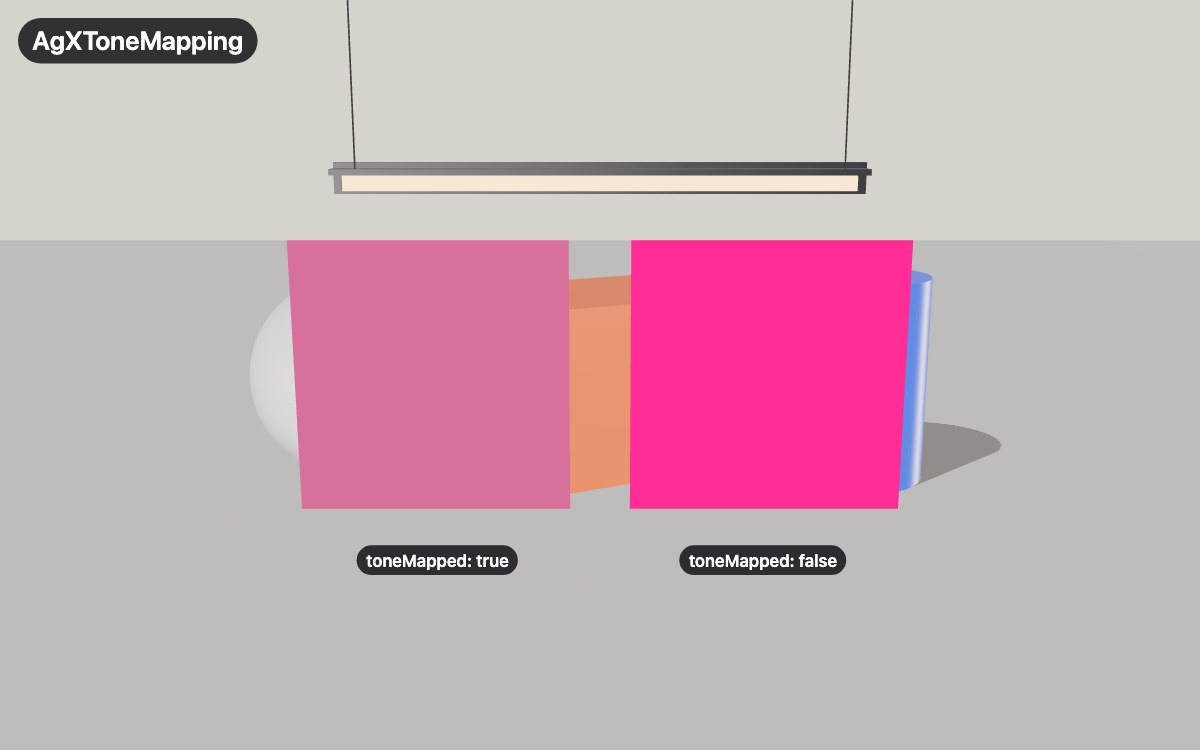
Under Neutral, the tone mapped card is just a little darker and redder.
Your ShaderMaterial ignores tone mapping
A ShaderMaterial is tone mapped only when its fragment shader includes tonemapping_fragment and colorspace_fragment.
export const toned = new THREE.ShaderMaterial({
  uniforms: { color: { value: new THREE.Color('#ff5a00') } },
  vertexShader: plain.vertexShader,
  fragmentShader: /* glsl */ `
    uniform vec3 color;
    void main() {
      gl_FragColor = vec4(color, 1.0);
      #include <tonemapping_fragment>
      #include <colorspace_fragment>
    }
  `,
});
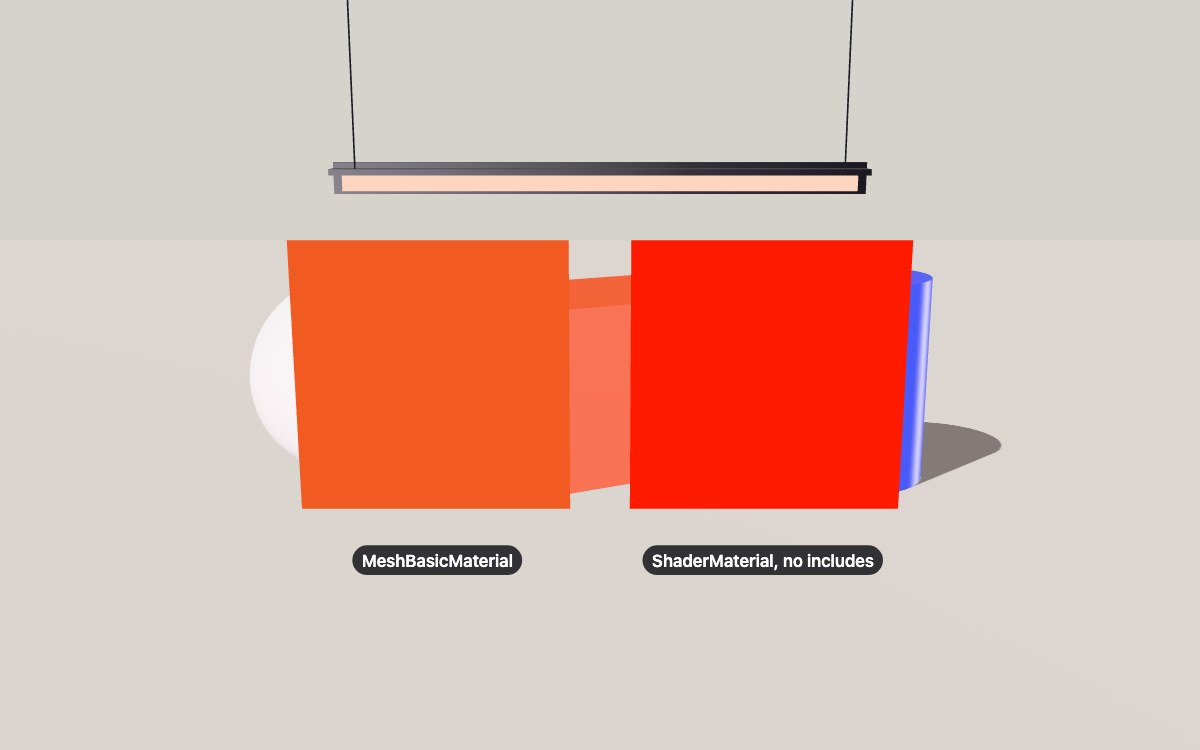
three.js puts tone mapping and color space functions into every ShaderMaterial. But it only runs them if your fragment shader asks for them. If you skip the two #include lines, the shader dumps its colors straight to the screen in linear light. That is how three.js stores them inside. Put it next to a MeshBasicMaterial with the same color, and it looks sharper and more red-orange.
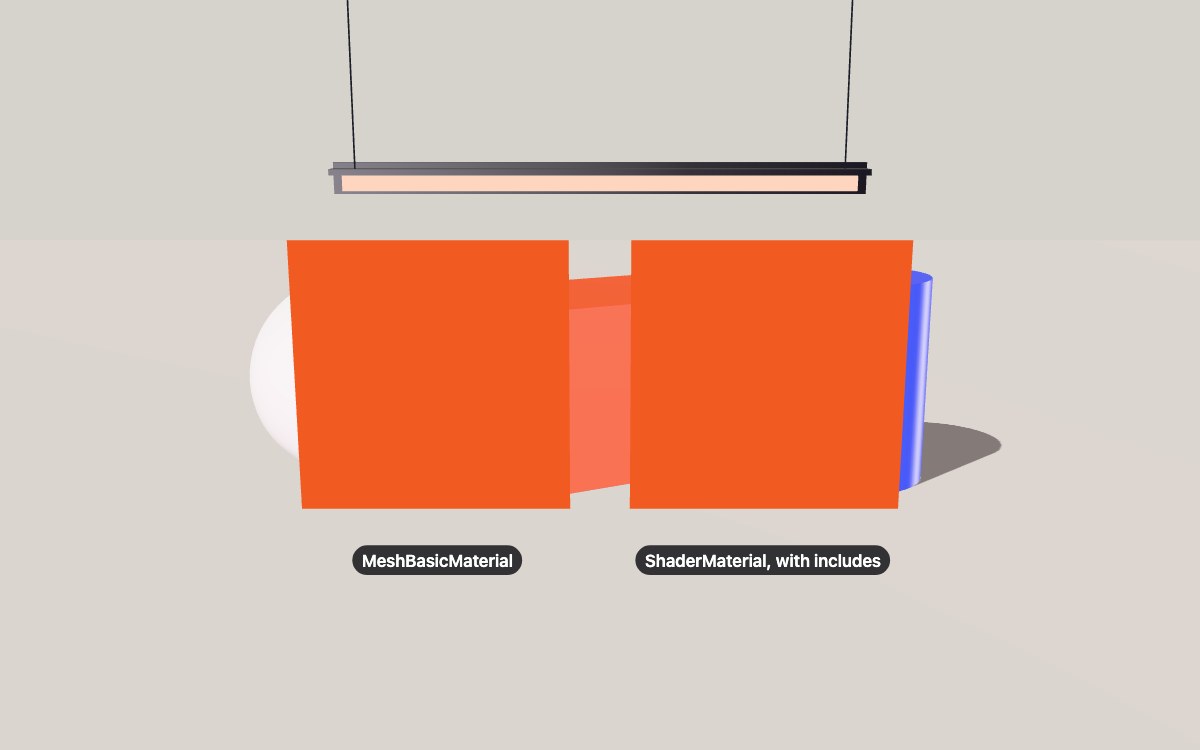
Add those two lines at the bottom of main(), after you set gl_FragColor, and the two cards line up.
Tone mapping disappears with post-processing
three.js only applies the curve when it renders directly to your screen. An EffectComposer with a bloom pass renders the scene into an offscreen buffer first, so the curve never gets applied.
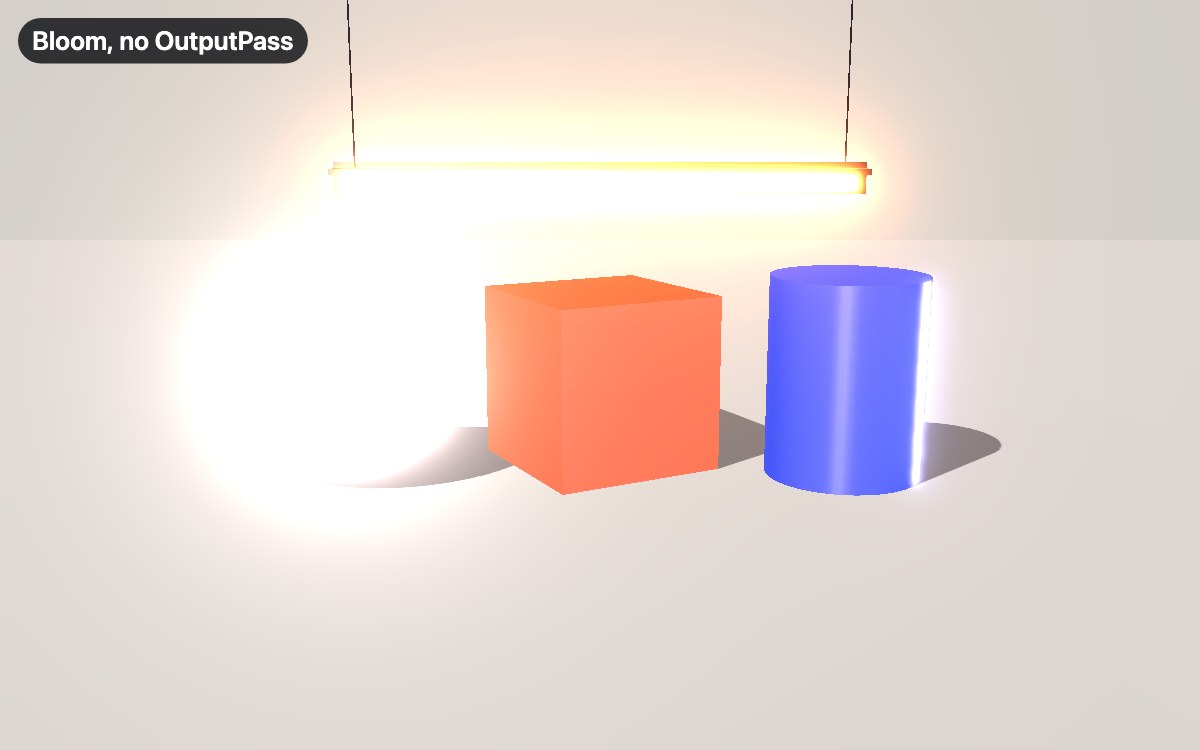
Add OutputPass as your final pass. It picks up toneMapping, toneMappingExposure, and the output color space from the renderer, then applies them.
import { EffectComposer } from 'three/addons/postprocessing/EffectComposer.js';
import { RenderPass } from 'three/addons/postprocessing/RenderPass.js';
import { UnrealBloomPass } from 'three/addons/postprocessing/UnrealBloomPass.js';
import { OutputPass } from 'three/addons/postprocessing/OutputPass.js';

const composer = new EffectComposer(renderer);
composer.addPass(new RenderPass(scene, camera));
composer.addPass(new UnrealBloomPass(new THREE.Vector2(window.innerWidth, window.innerHeight), 0.4, 0.2, 1));
composer.addPass(new OutputPass());

renderer.setAnimationLoop(() => composer.render());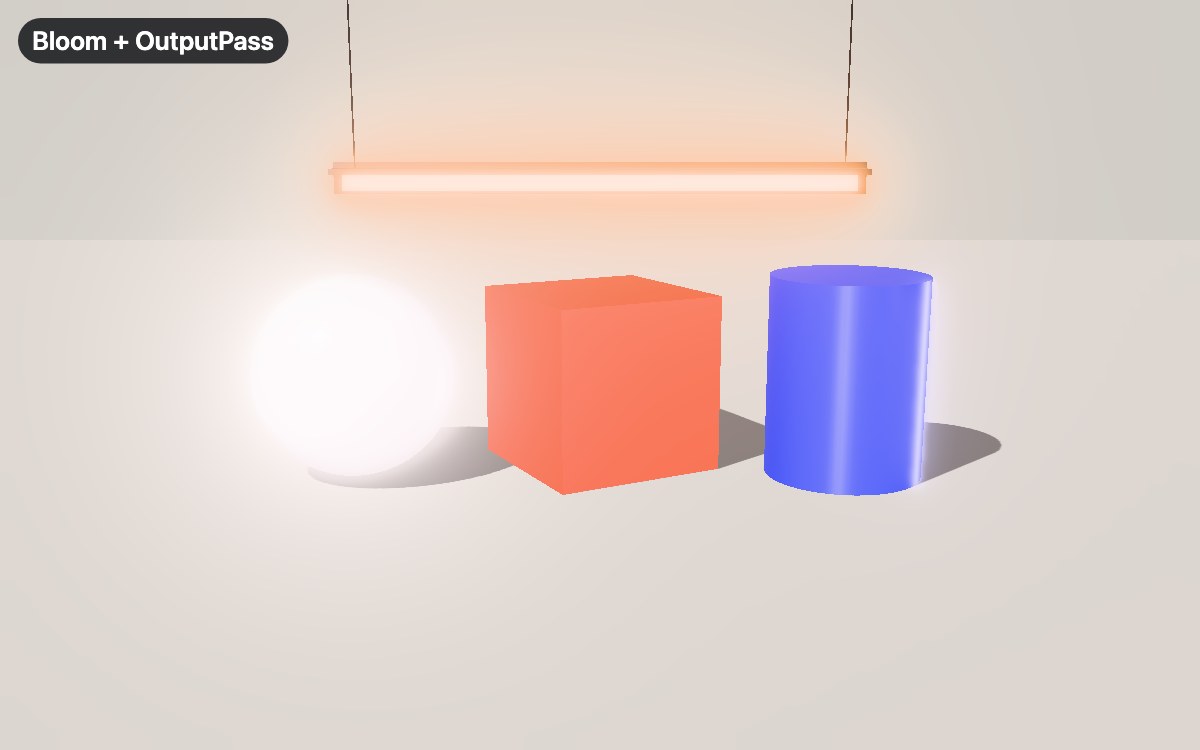
A composer that only has a RenderPass looks fine without OutputPass, because the composer allows its last pass to draw straight to the screen. The curve disappears as soon as you add a second pass. Any pass that needs sRGB input, like FXAA, should come after OutputPass, as three.js's own OutputPass docs explain.
In React Three Fiber
Pass the curve and the exposure to <Canvas> in its gl prop.
<Canvas
  shadows
  camera={{ position: [0, 1.6, 5.2], fov: 35 }}
  gl={{ toneMapping: THREE.NeutralToneMapping, toneMappingExposure: 1 }}
>
<Canvas> sets ACESFilmicToneMapping on its renderer when it is created,
then applies the gl prop over it, so the curve you put there wins. To turn
tone mapping off, as vanilla three.js has it, use the flat prop.
return <Canvas flat>{/* ... */}</Canvas>;Everything else in this article works the same in R3F, including
toneMapped={false} on a material.
How to make it look even better
Tone mapping changes how light turns into color, but three.js still simplifies the light itself to stay fast, so shadows are hard and no light bounces between the objects.
Using bakery3 you can render the scene you already have with a path tracer. You get soft shadows and the light that bounces off the orange box spills onto the ball and the floor making it look realistic. It uses the same tone mapping curve and exposure as your renderer, so the colors you tuned are the colors you get back. Load your HDRI so the render uses it for lighting too, then attach the scene.
import { createBakery3, rememberEnvironmentSource } from '@oeave/bakery3';

new HDRLoader().load('/hdri/studio.hdr', (texture) => {
  texture.mapping = THREE.EquirectangularReflectionMapping;
  scene.environment = texture;
  rememberEnvironmentSource(texture, '/hdri/studio.hdr'); // so a render is lit by it too
});

// An API key while you test. In production, use a token from your server instead:
// https://bakery3.com/docs#let-your-users-render-without-exposing-your-api-key
const bakery3 = createBakery3({ apiKey: 'bk_sk_…' });
bakery3.attach({ scene, camera, renderer });

async function renderScene(): Promise<string> {
  const job = await bakery3.render({ width: 2048 });
  const result = await job.result();
  return result.url;
}
Bakery3 matches the built-in curves from the renderer. Only a CustomToneMapping is not carried over.
Tone mapping, exposure and color space
lists what is read, the quickstart connects your own scene, and
Make a glass material in Three.js is
the next step for glass in a configurator.
Common questions
What is the default tone mapping in three.js?
Vanilla three.js draws with no tone mapping, because WebGLRenderer and WebGPURenderer both start with renderer.toneMapping set to THREE.NoToneMapping and toneMappingExposure at 1. React Three Fiber is different, since its Canvas component turns on ACESFilmicToneMapping unless you pass the flat prop.
Should I use ACES or AgX tone mapping in three.js?
For a product scene in three.js, start with NeutralToneMapping instead, because it keeps colors closest to the hex values you set. ACESFilmicToneMapping adds contrast and soft highlights but shifts colors, so orange drifts toward yellow and blue toward violet. AgXToneMapping pushes bright colors toward white and is the most muted of the three, so saturated colors come out grayer.
Why does white turn gray with tone mapping in three.js?
Most three.js tone mapping curves draw a value of 1.0 a little below full white, so a white material or an HDR background turns light gray once renderer.toneMapping is on. A scene.background set to a THREE.Color or to an sRGB image such as a JPEG is drawn untouched. To keep a surface pure white, set toneMapped = false on its material or raise renderer.toneMappingExposure.
Why does toneMappingExposure do nothing in three.js?
renderer.toneMappingExposure only works while a tone mapping curve is on, because three.js applies the exposure inside the curve. With the default NoToneMapping it has no effect, so set renderer.toneMapping to a curve such as NeutralToneMapping first. It also skips any material with toneMapped = false, and an EffectComposer with more than one pass and no OutputPass.
How do I write a custom tone mapping curve in three.js?
Set renderer.toneMapping = THREE.CustomToneMapping and replace the body of the CustomToneMapping function inside THREE.ShaderChunk.tonemapping_pars_fragment before the first frame is drawn, because three.js reads that chunk when it compiles each shader. The function gets the color in linear light and returns the tone mapped color, and it has to multiply by the toneMappingExposure uniform itself.