Take a screenshot of a Three.js scene
Updated on . Tested with three.js r186 and R3F 9.
Sometimes you need to save a screenshot of what your three.js scene shows. This could be when your user has built a furniture configuration and you want to show it in their cart, or simply because you have designed an awesome graphic that you want to share with the world. Here are some tips and tricks for getting the best results, starting with the one that matters most. Render a frame and read the canvas straight after it, in the same function, or the picture comes back empty.
Save the canvas as a PNG
Render a frame and call toBlob() on the renderer's canvas straight after it,
in the same function.
function screenshot(type = 'image/png'): Promise<Blob> {
  renderer.render(scene, camera);
  return new Promise((resolve, reject) => {
    renderer.domElement.toBlob((blob) => {
      if (blob) resolve(blob);
      else reject(new Error('The canvas is empty'));
    }, type);
  });
}
screenshot() gives you the frame as a Blob. To let the shopper download
it, hand it to a link and click it.
function download(blob: Blob, name: string) {
  const url = URL.createObjectURL(blob);
  const link = document.createElement('a');
  link.href = url;
  link.download = name;
  link.click();
  setTimeout(() => URL.revokeObjectURL(url), 1000);
}

document.querySelector('#save')?.addEventListener('click', async () => {
  download(await screenshot(), 'configuration.png');
});
Pass 'image/jpeg' or 'image/webp' for a smaller file. toBlob is better
than toDataURL here, because it does not build a base64 string several megabytes
long on the main thread.
The image is black or empty
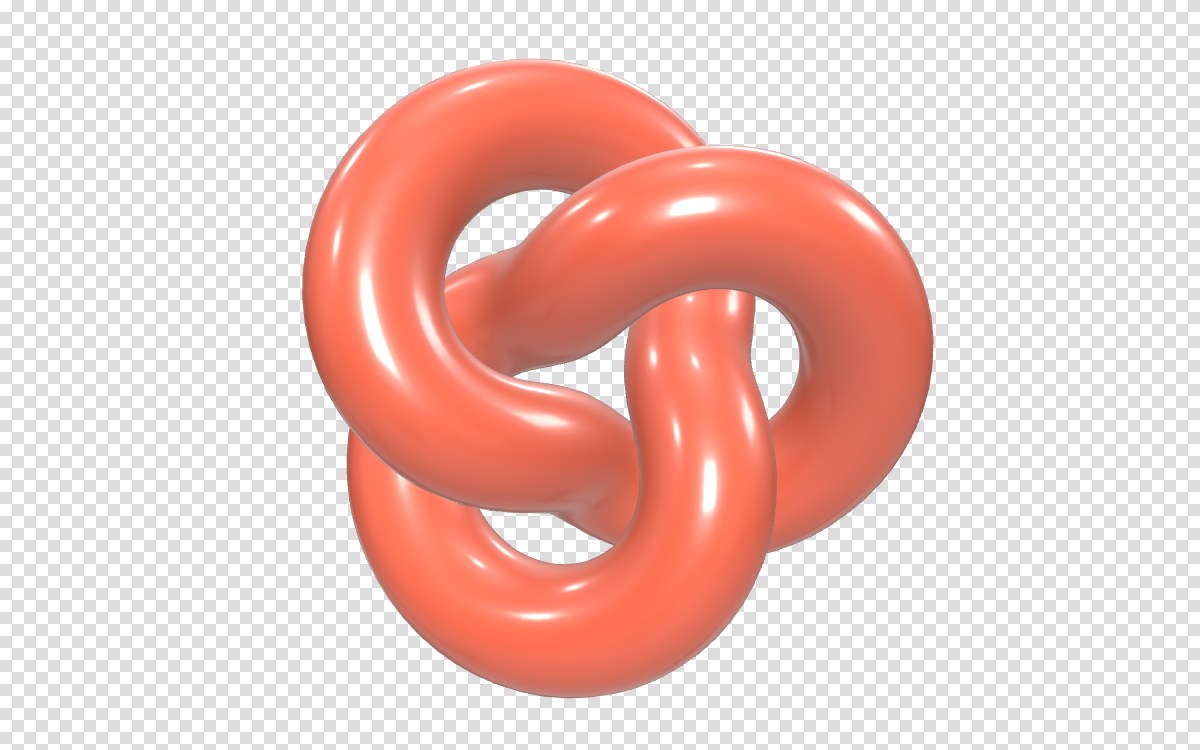
A WebGL canvas is cleared once the browser has put the frame on screen. By
default three.js creates its renderer with preserveDrawingBuffer: false
because it's more performant. So a
toDataURL() or toBlob() called from a click handler reads a canvas that
was already cleared. The PNG you get is fully transparent. On a dark page or in
some image viewers that looks black, and saved as a JPEG it is solid black.
There are two ways to fix it.
- Render right before you read, in the same function, as
screenshot()does. Use this one. - Create the renderer with
preserveDrawingBuffer: true. Reading later now works, but on some devices that makes the whole page slower.
If you use post-processing, call composer.render() in screenshot()
instead of renderer.render(), or the picture is saved without its effects.
Save it larger than the screen
The canvas is as big as it is on the page, times the screen's pixel ratio. A viewport 1,200 pixels wide gives a 2,400 pixel image on a laptop and often less on a phone. For a print or a PDF, draw one frame at the size you need and set everything back.
async function screenshotAt(width: number, height: number): Promise<Blob> {
  const size = renderer.getSize(new THREE.Vector2());
  const ratio = renderer.getPixelRatio();
  const aspect = camera.aspect;

  renderer.setPixelRatio(1);
  renderer.setSize(width, height, false);
  camera.aspect = width / height;
  camera.updateProjectionMatrix();

  const gl = renderer.getContext();
  if (gl.drawingBufferWidth < width || gl.drawingBufferHeight < height) {
    console.warn(`The browser gave ${gl.drawingBufferWidth}×${gl.drawingBufferHeight}, not ${width}×${height}`);
  }

  try {
    return await screenshot();
  } finally {
    renderer.setPixelRatio(ratio);
    renderer.setSize(size.x, size.y, false);
    camera.aspect = aspect;
    camera.updateProjectionMatrix();
  }
}
To get a specific resolution for your export, do the following.
- Set the pixel ratio to 1, so
widthandheightare the pixels you get. - Pass
falseas the third argument tosetSize. It resizes what is drawn and leaves the canvas's size on the page alone, so nothing on screen jumps. - Set
camera.aspectto the image's width divided by its height and callcamera.updateProjectionMatrix(), or a square image of a wide viewport comes out squashed. An image narrower than the viewport shows less at the sides, so if the product no longer fits, move the camera back or raisecamera.fovfor the capture.
GPUs have a maximum size for what they render. If you ask for more, the
browser makes the canvas smaller without an error. drawingBufferWidth tells
you the size you really got, which is why the function checks it.
Keep the background transparent
If you need a transparent background, create the renderer with alpha: true
and leave the scene's background empty.
const renderer = new THREE.WebGLRenderer({ antialias: true, alpha: true });
scene.background = null;
PNG and WebP keep the transparency. JPEG has none, so the transparent pixels come out black.
Send the screenshot to your server with the shopper's choices
Often the shop needs to see what the shopper built, to price it or to make it. Send the picture to your server together with the choices that made it, at a size that prints.
async function sendConfiguration(configuration: Record<string, string>) {
  const form = new FormData();
  form.append('image', await screenshotAt(2048, 1536), 'configuration.png');
  form.append('configuration', JSON.stringify(configuration));
  await fetch('/api/configurations', { method: 'POST', body: form });
}
On your server it is an ordinary file upload.
Take a screenshot in React Three Fiber
React Three Fiber runs the render loop for you, so take the renderer, the
scene and the camera from useThree in a component inside the <Canvas>, and
hand a capture function out through a ref. The button stays outside the
canvas, with the rest of your interface.
type Capture = () => Promise<Blob>;

function CaptureHandle({ capture }: { capture: RefObject<Capture | null> }) {
  const { gl, scene, camera } = useThree();
  useEffect(() => {
    capture.current = () => {
      gl.render(scene, camera);
      return new Promise((resolve, reject) => {
        gl.domElement.toBlob((blob) => {
          if (blob) resolve(blob);
          else reject(new Error('The canvas is empty'));
        }, 'image/png');
      });
    };
  }, [gl, scene, camera, capture]);
  return null;
}

export function Configurator() {
  const capture = useRef<Capture | null>(null);
  return (
    <>
      <Canvas>
        <CaptureHandle capture={capture} />
        <mesh>
          <boxGeometry />
          <meshStandardMaterial color="tomato" />
        </mesh>
      </Canvas>
      <button
        onClick={async () => {
          const blob = await capture.current?.();
          if (blob) download(blob, 'configuration.png');
        }}
      >
        Save image
      </button>
    </>
  );
}
React Three Fiber already creates its renderer with alpha: true, so the
background is transparent unless you give the scene one. You do not need
gl={{ preserveDrawingBuffer: true }} either, because the capture renders its own
frame first, exactly like the vanilla version.
How to make it look even better
A screenshot is exactly the viewport, with the same shadow maps, the same reflections of the environment map and the same edges. For a thumbnail in a cart that is what you want.
When the picture has to look like a photo, for an order confirmation, a PDF or an image the shopper shares, Bakery3 renders the same scene with a path tracer. It takes a few lines beside your screenshot code.
// An API key while you test. In production, use a token from your server instead:
// https://bakery3.com/docs#let-your-users-render-without-exposing-your-api-key
const bakery3 = createBakery3({ apiKey: 'bk_sk_…' });
bakery3.attach({ scene, camera, renderer });

async function photo(): Promise<string> {
  const job = await bakery3.render({ width: 2048 });
  const result = await job.result();
  return result.url;
}
photo() returns a link to a PNG of the scene exactly as the shopper left it,
traced with its own materials, lights and camera, with a
transparent background by default. It
takes longer than a screenshot and each image is charged, so most
configurators keep the screenshot for the cart and render only the pictures
that have to look their best. The quickstart sets up the token endpoint, and
Render image has every option.
Below is the same chair in a Three.js viewport and traced from that scene.
Fabric is where a rasteriser runs out of road. The sheen along a fold is light that entered the weave and left it somewhere else. The traced frame also grounds the legs, and that contact shadow was not authored.
240 frames at 60fps·preview preset
Common questions
Why does toDataURL return a black or blank image in three.js?
Three.js creates its WebGLRenderer with preserveDrawingBuffer: false, so
the browser can clear the canvas once a frame is on screen. A toDataURL()
called later, from a click handler, reads that cleared canvas. Call
renderer.render(scene, camera) right before toDataURL() or toBlob(), in
the same function, so you read the canvas before the browser clears it.
Can I turn on preserveDrawingBuffer only when I take a three.js screenshot?
No, not on a renderer that already exists. preserveDrawingBuffer is a WebGL
context attribute, fixed when the three.js WebGLRenderer creates its
context, and leaving it on makes the browser keep every frame, which the WebGL
specification warns can be slower on some devices. Call
renderer.render(scene, camera) right before toBlob() instead, and the
default false works.
How do I take a high resolution screenshot of a three.js scene?
Render one frame at the size you need, then put the renderer back. Call
renderer.setPixelRatio(1) and renderer.setSize(width, height, false), set
camera.aspect to the new shape with camera.updateProjectionMatrix(),
render, read the canvas with toBlob() and restore the old values. The GPU
limits how large a canvas can be and the browser shrinks it without an error,
so check gl.drawingBufferWidth before you trust the size.
How do I save a three.js canvas as a JPEG?
Pass 'image/jpeg' to the canvas's toBlob() or toDataURL(), with an
optional quality from 0 to 1, for example
renderer.domElement.toBlob(callback, 'image/jpeg', 0.9). JPEG has no
transparency, so a three.js renderer created with alpha: true and no
scene.background saves its empty pixels as black. Give the scene a
background color first, such as scene.background = new THREE.Color('white').
Do I need preserveDrawingBuffer to take a screenshot in React Three Fiber?
No, not if the capture renders its own frame. React Three Fiber creates its
WebGLRenderer without preserveDrawingBuffer, so it is false, but calling
gl.render(scene, camera) from useThree right before
gl.domElement.toBlob() reads the canvas before the browser clears it. Only a
toDataURL() in a click handler that does not render first needs
gl={{ preserveDrawingBuffer: true }} on the Canvas.