Render image
Call render() to get a realistic image of your scene, seen from your
camera. You get a job back. It gives you a quick preview first and the
finished image when it is ready.
Render an image
function RenderButton() {
  const { render, result } = useBakery3({ token: getToken });

  return (
    <>
      <button onClick={() => render()}>Render</button>
      {result && <img src={result.url} alt="Render" />}
    </>
  );
}
The SDK reads your objects, materials, camera and lights at the moment you call
render(). With no options you get a PNG at studio quality with a
transparent background, 2048 pixels on its long edge and the same shape as
your camera. If you have not connected your scene yet, start with the
Quickstart.
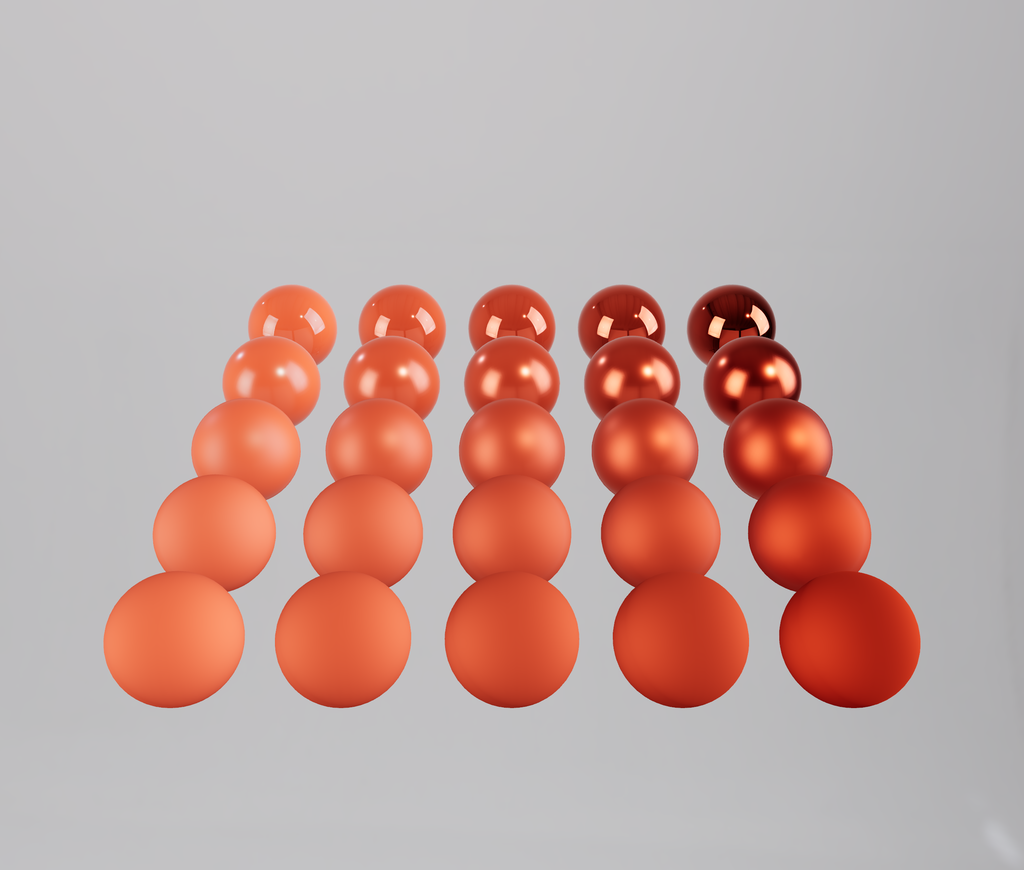
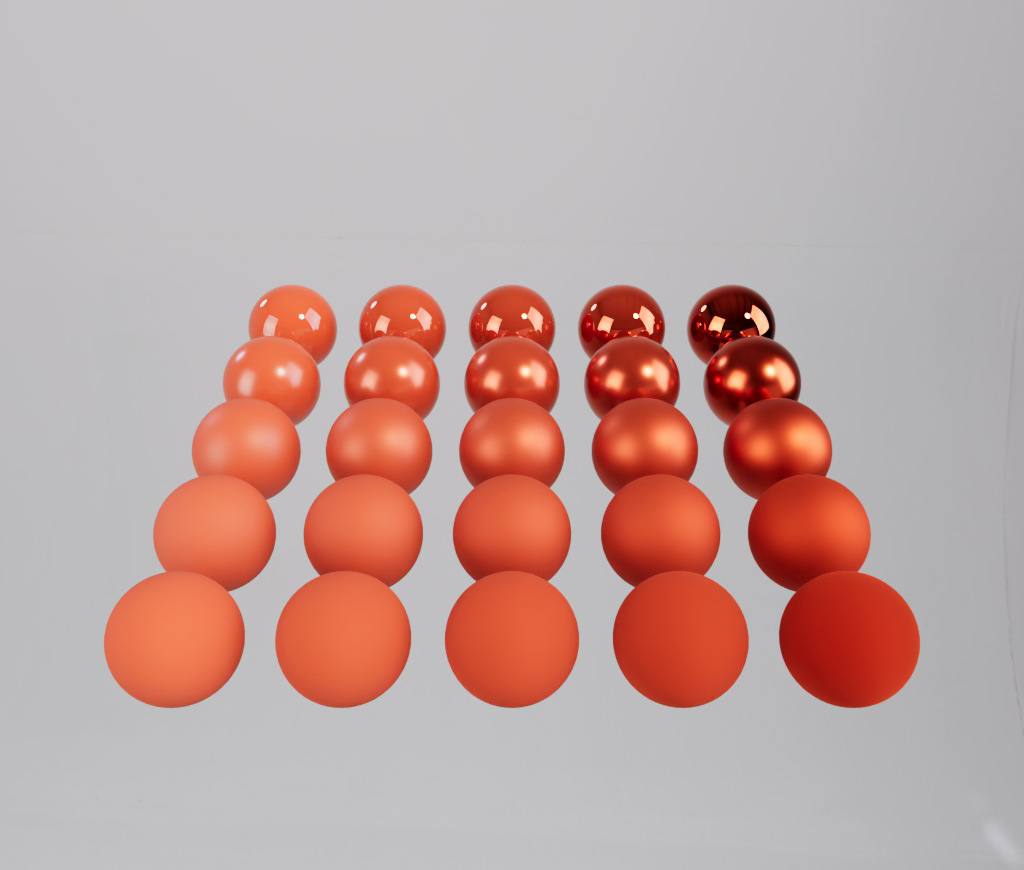
Same scene, same camera, same materials. The tell is the contact shadow and the bounce light between surfaces. Neither exists in the raster pass, and neither was authored.
1024×870·studio preset
Choose size, format and a price limit
const job = await render({
  quality: 'studio',
  width: 2048,
  height: 2048,
  format: 'png',
  maxCost: 0.5,
});
Every option is optional.
| Option | Type | Default | What it does |
|---|---|---|---|
quality | string | 'studio' | 'preview', 'studio' or 'ultra'. See Quality. |
width, height | number | the camera's shape, long edge set by the quality | Size in pixels. Give one and the other follows the camera. See below. |
format | string | 'png' | 'png', 'jpeg' or 'webp'. |
imageQuality | number | none | 1 to 100, for JPEG and WebP. |
maxCost | number | none | The most this render may cost, in USD. Above it, the render is refused and nothing is charged. |
background | object | transparent | { type: 'transparent' }, { type: 'color', color } or { type: 'environment' }. See below. |
preview | boolean | set by the quality | Ask for a quick preview image before the final one. |
scene, camera | object | the attached pair | A three.js Scene and Camera, to render something other than the attached pair for this call. |
cameras | array | none | Camera names, cameras, or { id, position, target, fov }. Render from several at once, see below. |
priority | string | 'normal' | 'high' puts this render ahead of your other waiting renders. |
productState | object | none | Your own app state, stored with the render. Never rendered. |
metadata | object | none | Your own keys and values on the render record. |
idempotencyKey | string | none | Makes a retry return the same render. See below. |
onUpload | function | none | Called while files upload. |
advanced | object | none | Samples, bounces, caustics and more. See Quality. |
Choose the size
Leave out width and height and the render has your camera's shape, with
the quality's long edge: 1024 for preview, 2048 for studio, 4096 for
ultra. A 16:9 viewport renders 16:9, framed as you see it.
await render();                            // 2048 × 1152 from a 16:9 camera
await render({ width: 1200 });             // 1200 × 675, the height follows
await render({ width: 2048, height: 2048 }); // exactly this size
Give both sides in another shape than the camera's and the picture keeps the
camera's height of view and shows more or less at the sides.
createBakery3({ defaults: { output: { width: 1600 } } }) sets a size for
every render, and estimate() uses it too.
Pick a quality
- preview
- A quick look at roughly how the render will turn out. Fast and cheap, but grainy. Up to 32 samples, 1024px by default.
- studio
- The default, and the one the pricing page quotes. Good for product images, including glass, metal and glossy surfaces. Up to 256 samples, 2048px by default.
- ultra
- For the large hero image on your homepage. Takes around six times as long as studio. Up to 2048 samples, 4096px by default.
Quality has the numbers behind each one, the advanced settings, and how to get light shining through glass (caustics).
Set the background
A PNG has a transparent background unless you say otherwise, so you can place the product on your own page. Set a color, or show your scene's environment.
await render({ background: { type: 'transparent' } });   // the default
await render({ background: { type: 'color', color: '#f4f1ea' } });
await render({ background: { type: 'environment' } });   // show the HDRI
Show a preview while it renders
job.result() waits for the finished image. To show something sooner, listen
to the job's events.
const job = await render({ quality: 'studio' });

job.on('preview', ({ url }) => setImage(url));
job.on('progress', ({ percent, state }) => setProgress(percent));
job.on('complete', ({ result }) => setImage(result.url));
job.on('failed', ({ error }) => toast(error.toDisplayString()));

const result = await job.result();
preview fires once, with a quick, grainy version of the image. Listening is
enough to start following the job: you do not have to call result(). A
listener added late is called at once with the latest preview, the latest
progress, or how the job ended. failed always fires before result()
rejects.
on() returns a function that unsubscribes, so you can return it straight from
a React effect.
useEffect(() => job.on('progress', ({ percent }) => setProgress(percent)), [job]);In React Three Fiber the hook does this for you: progress, previewUrl,
result and error follow the latest render it started. Under
<Bakery3Provider> they follow the latest render from any component.
What you get back
const result = await job.result();

result.url;         // a private link
result.expiresAt;   // 1735776000000, when the link stops working
result.width;       // 2048
result.height;      // 2048
result.format;      // 'png'
result.bytes;       // 4_912_338
result.cost;        // 0.13, what was charged
The link is signed and works for 24 hours. Copy the file into your own storage
to keep it. Until the project's retention deletes the
file, getRender() gives you the render again with a fresh link:
const job = await bakery3.getRender('k1793xk2qyb6p9nw0f8d5c4h3m7s2v6a');   // after a reload, or from a webhook
const result = await job.result();
Follow the job's status
job.status moves through these states. job.progress is a rough fraction of
the way through them. A real percentage only exists while rendering.
created → uploading → validating → queued → starting → preparing
        → rendering_preview → rendering → encoding → uploading_result
        → completed
A job ends as completed, failed, cancelled or expired.
Render from several cameras
Pass cameras to render the same scene from several cameras in one call. You
get a set of pictures back instead of one job. See
Several cameras at once.
const shots = await bakery3.render({ cameras: ['hero', 'front', 'detail'] });
const [hero, front, detail] = await shots.result();
To render every variant of a product, use renderVariants(). See
Render every variant.
Cancel a render, or stop waiting for it
await job.cancel();   // stops the render; result() rejects with Cancelled
job.stop();           // stops following it on this page; it still renders

const result = await job.result({ signal: AbortSignal.timeout(60_000) });
Cancelling a render that has already completed does nothing. After stop(),
or a signal that aborts, the render goes on and is charged as usual, and
getRender(job.id) reads it later.
Retry without paying twice
Give a render an idempotencyKey. If you send the same request again while it
is running or after it has completed, you get the same render back instead of a
second one. If the render failed or was cancelled, nothing was charged and the
same key renders again. So does a key whose render has expired.
await render({ idempotencyKey: `quote-${quoteId}-v2` });Every error has a retryable flag. It tells you if trying again can help, or
if the scene itself has to change first.
try {
  await job.result();
} catch (error) {
  if (error.retryable) return retry();
  showToUser(error.toDisplayString());
}
Render a scene the user is not looking at
Pass scene and camera to render something other than the attached scene
for one call, for example a variant you built off-screen.
await bakery3.render({ scene: variantScene, camera: productCamera });Show upload progress
Only files we have not seen before are uploaded, so most renders after the first upload nothing. See Assets & caching.
await render({
  onUpload: ({ cached, uploaded, bytesUploaded, bytesTotal }) =>
    setStatus(`${uploaded} new, ${cached} cached`),
});